
Now that you know what a Poster is, let's move on to the Poster section within the AdMargin Manager. If you feel you need a re-cap on what a Poster is then please click here.
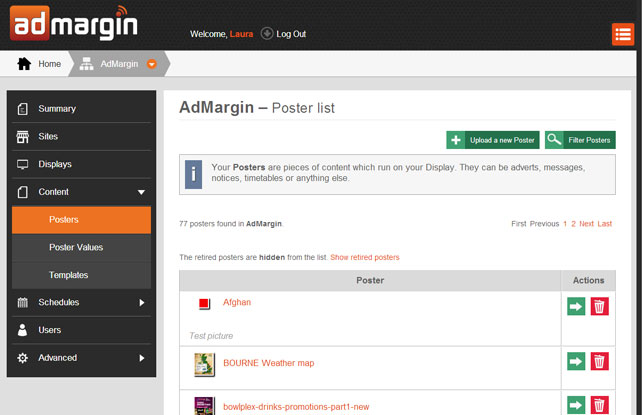
To access the Posters page within the AdMargin Manager click on Content in the side menu and within the sub-menu you will see Posters. On the Posters page you will see a list of all your uploaded posters, along with options to Uplaod a new Poster, Filter Posters, Edit Posters and Delete Posters.
Upload A New Poster
To upload a new poster all you have to do is click the green "Upload a new Poster" action link. This will open a dialogue box with the option to choose your desired file.
You can upload images (.png, .jpg, .jpeg), a video file (only .WEBM files are allowed) or a .zip file. The zip file has to be a HTML pack and will contain a folder which must include an index.html file (page to be shown), a package.ini file (configuration file), and also a resources folder (fonts, images...).
Edit Posters
To edit a poster all you have to do is click on the poster link or the green arrow to the right of the poster. This will take you to the posters details page.
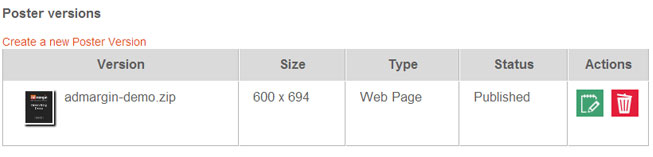
From here you can Update (change name, duration and published status), Copy (copy and save to another organisation or site) and Delete your poster. You can also create new poster versions.
Poster Versions
Poster versions are variations of one poster ie. different sizes to fit different displays.
To create a new poster version, select your poster - this will open the posters details page. Click the link "Create a new Poster Version" and upload the necessary content.
Poster Values
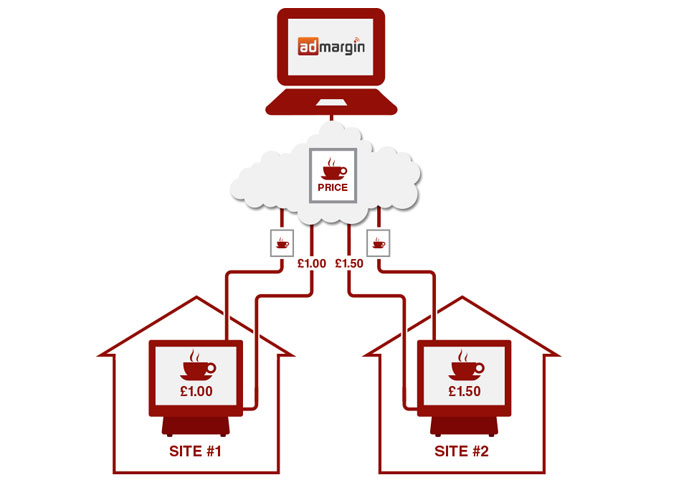
Poster Values allow you to insert your own prices and text into a Poster, on a site-by-site basis.
In this way you can create a single Poster for your whole organisation with differing prices on each site, and when your prices change the Displays will automatically show the new values.
Site-level Poster Values
Choose the site you wish to add specific poster values to then click Poster Values on the side menu. Click on the green "Add new poster value" action button.
Organisation-level Poster Values
If you have several sites, and your Poster Values are the same from site to site, you can define them at the Organisation level. Sites will inherit their values from the Organisation. Click your organisation from the top navigation -> click Poster Values on the side menu. Click on the green "Add new poster value" action button.
If you define a value at both the Organisation and Site levels then the Display will use the Site-level value.
Complex Poster Value Rules
In some cases you may want your values to change over the course of the day. For example, you may want to introduce Happy Hour prices. To do this, you can define your Poster Values as a list of rules.