
Now that you know what a Play List is, let's move on to the Play Lists section within the AdMargin Manager. If you feel you need a re-cap on what a Play List is then please click here.
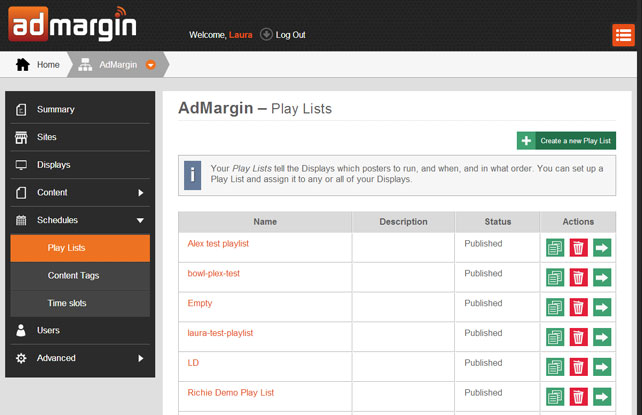
To access the Play Lists page within the AdMargin Manager click on Schedules in the side menu and within the sub-menu you will see Play Lists. On the Play Lists page you will see a list of all your Play Lists, along with options to Create a new Play List, Copy, Edit and Delete.
Create a Simple Play List (No Conditions)
To create a Play List click the green "Create a new Play List" action button. A pop up dialogue box will appear asking you to name your Play List, give it a small description and whether or not you'd like shuffle to be activated. Press Create.
Your new Play List will appear with some sample entries just to get you started.
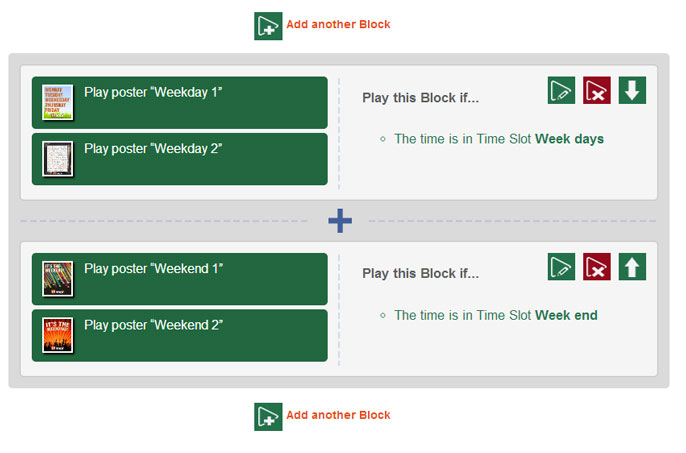
Your new Play List is arranged into Playblocks. Playblocks allow you to create a Play List with the ability to add certain conditions to certain blocks. An example of this would be only running part of your Playlist in the morning (breakfast and lunch offers) and the other part in the evening (meal deals and drinks offers).
Since this is only a simple Play List with no conditions you can get rid of the bottom Playblock. To delete it just click on the red play icon with a cross through it (Please see the image above).
Customise Your Play List
Now you are ready to edit the default Playlist. To edit either click on the Playblock itself or click on the green play icon with a pencil through it. A pop-up dialogue box will appear like the one in the example below. There are two sections to the Pop-up. Commands and Conditions. Since this is only a simple Play List we will only be using the Commands section of this dialogue box.
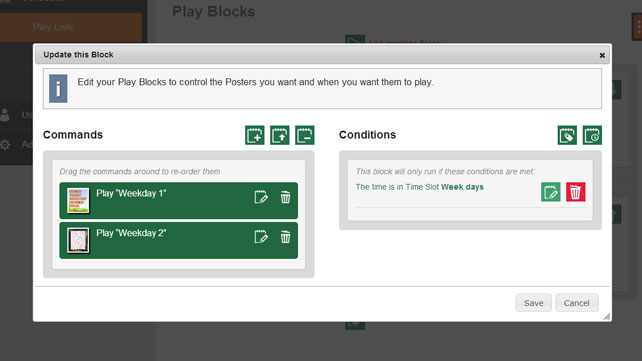
Within the Commands section of the pop-up you will see three different icons. Add a Poster, Upload a new Poster and Hide a Poster. You will also notice two default posters already in the Play List. "Weeday 1" and "Weekday 2". You can click and drag these Posters to easily change their order.
Each poster has it's own set of icons. Edit and Delete. When you click on Edit you can change the Posters default duration (the length of time it will run for) and Delete will delete the poster from the Play List.
To add your own Posters to the Play List all you have to do is click on either the Add a Poster icon (a pop-up dialogue will appear with a list of all your posters) or you can click Upload a new Poster (you will be given the option to browse for your file).
You can add as many posters as you like and re-order to suit by just dragging the Posters up or down. When you ar happy with your Play List press Save.
Well done! You have just created you fist Play List.