
Now that you know what a Display is, let's move on to the Displays section within the AdMargin Manager. If you feel you need a re-cap on what a Display is then please click here.
On the Displays page within the AdMargin Manager you will see a list of all your registered displays, what content is running of them, in which Site they are running in and their current status.
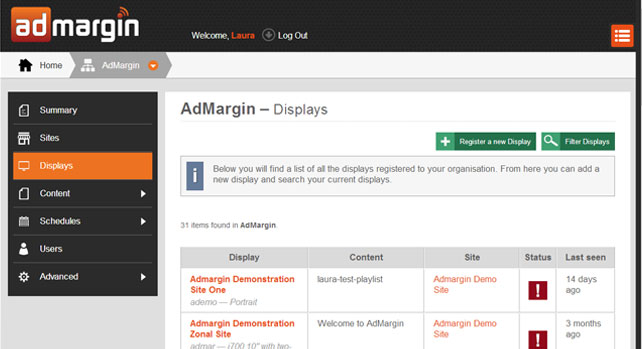
At the top of the page you will see two green action buttons. Register a new display which when clicked allows you to register your new display, give it an appropriate name, register it to a particular site and assign it a Display type and Filter Display which allows you to search through your displays.
Display Types
Every display has its own default layout, which is based on the display’s Display Type. When you register a new Display you can choose the appropriate Display Type. Then later when you choose your posters or content, the Layout decides where the custom content should go.
| Display Type | Content Size |
|---|---|
| Zonal i700 (7") with two-line till display | 800px x 374px |
| Zonal i700 (10") with two-line till display | 600px x 694px |
| Typical landscape display | 1366px x 768px |
| Typical portrait display | 768px x 1366px |
Display Settings
To edit a displays settings all you need to do is click on one of your displays. This will take you to the Display Summary page. From here you can see your displays details, content schedule and you ban request a screen shot of currently running content.
Move Display
To move a display to another site in your organisation just click on the green Move Display action button. A pop up dialogue box will appear with a dropdown menu giving you a list of sites to choos from.
Update Display
Details To update your displays details just click on the green Update Display Details action button. A pop up dialogue box will appear with four different sections.
General
From here you can re-name your display and change what Display Type it is eg. Landscape, portrait, i700 etc.
Schedule
Here you can choose what kind of content will be shown on your display. Choose from either a Fixed Poster or a Playlist. Depending on which option you have chosen, the dropdown list below will show you what posters or Playlists you can choose from.
You can also add Content Tags here. Content Tags are the most common way to control Poster and Play List behaviour. Every Display has content tags. In addition, Sites have content tags and the Displays inherit them.
Watchdog
The Watchdog is a special electronic timer which is used to detect any malfunctions in your device. From here you can choose whether or not to receive Watchdog alerts, set the Watchdog's timeout in minutes and set an email address for Watchdog alets to be sent to.
Advanced
Within the advanced section you can change the displays identifier, language and add an overlay which can be useful when trying to track which display is which.