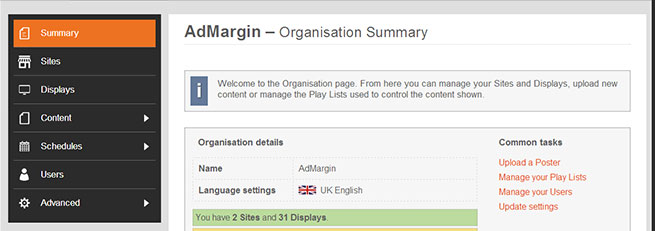
When you log on to the AdMargin Manager you will be taken straight to a Summary page. Several of these components will help you navigate your way through the Manager.
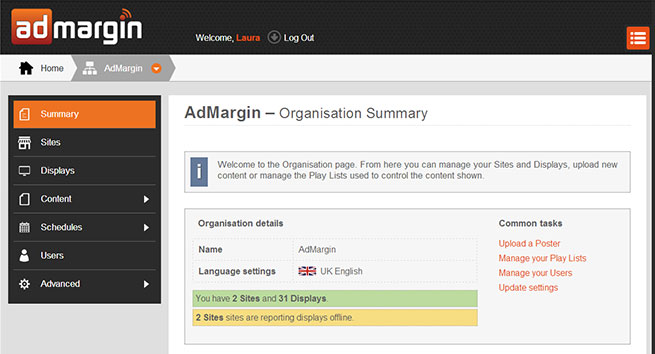
Header
In the header bar you will notice the AdMargin logo which when clicked will take your Summary page. You will also notice your name and an option to Log Out of the system. On the far left you will see a small icon. This is our Quick Links icon and when clicked opens a sliding panel with a list of useful links. To close it all you need to do is click anywhere on the screen.

Top Navigation
Below the header bar you will notice the top level navigation. This will show you what level you are at in the Manager.
In this first example the navigation bar is showing you that you are in your Organisation. You can switch to another organisation by clicking the little orange arrow after which a popup dialogue will appear with a list of organisations to choose from.

In the second example you are viewing a Site within your Organisation. You can change which site to view by clicking the orange arrow. To go back to an Organisation level all you have to do is click the Organisation link.

In the third example you are viewing a Display within a Site in your Organisation. You can change which display to view by clicking the orange arrow. To go back to a Site or Organisation level all you have to do is click on either of the previous links.

Side Navigation
The side navigation panel offers a list of links specific to where you are in the Manager. For example If you are at an organisation level the side menu will give you a list of options specific to the organisation. If you are at a Site level the side menu will change to be specific to that Site.